







About Game Factory
Most games on a portal hand you a character and a goal. Game Factory hands you an empty grid, a name field with nothing in it, and a green button that says Test. There is nothing to win on the first screen, because there is no game yet. You make one.
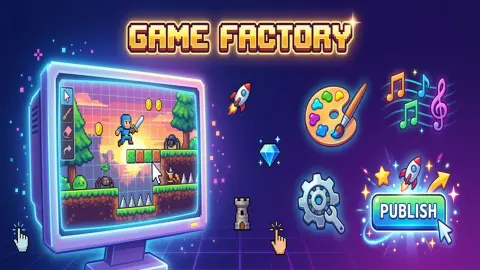
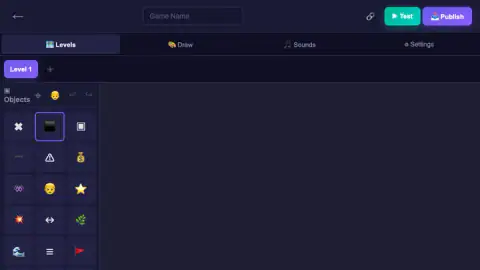
It works like a small workshop. You pick a genre from a list of six, you get an editor for it, and you fill it in: where the ground goes, where the coins go, what the hero looks like. Four tabs across the top divide the work — Levels, Draw, Sounds and Settings — and the game names all four before it lets you touch anything. Then you press Test and play what you laid out, and Publish when it is ready.
The game is credited to Flagwin Studio.
The honest part first. Across two visits we read the opening cards, opened a platformer, laid two ground blocks and a row of coins, ran a short test, and spent the longer visit in the drawing tab, where we put a single black square on the canvas and saved it. We never published anything, never named a game, never unlocked a paid genre and never opened Sounds or Settings. This page explains how the workshop is laid out, not what the six kinds of game are like to finish.
The game names its reward before you have made anything
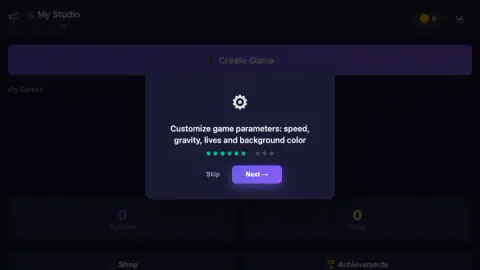
The nine opening cards are worth reading rather than skipping, because two of them are the closest thing here to a manual. One names the tabs: "The editor has tabs: Levels (for platformer), Draw, Sounds and Settings". The other names everything you may change once the genre has set the rules — "Customize game parameters: speed, gravity, lives and background color". That is the line to remember: speed, gravity, lives and the colour behind it all, and nothing about what a coin does or how an enemy thinks.
The last two cards are about money. "Publish your game to earn coins and rating! You can also share a code with friends", says the eighth; the ninth promises bonus rewards for daily tasks and achievements. The loop is on the table before you have placed a block: building is for fun, publishing is what pays, and coins buy the genres you cannot otherwise reach.
What the workshop looks like
The first screen is called My Studio, with a pencil beside the name and "Lv.1" under it. Below the Create Game bar, a list named My Games starts out empty and labelled "No games yet. Create your first!", above two counters, Published and Rating, both at zero. Shop and Achievements sit at the bottom; we opened neither.
The genre screen is six cards, each with a one-line pitch: "Jumping, platforms and adventures" for Platformer, "Click, earn and upgrade" for Clicker, "Enemies, bullets and explosions" for Shooter, "Combine elements and solve puzzles" for Match-3. The locked ones carry a padlock, and those we could see in full each had a gold Watch Ad (0/2) button, which we read as two ads per genre. We did not watch one, so we cannot say how long they are or whether the unlock sticks.
In the editor, along the top: a back arrow, a field for the game's name, a link icon, Test and Publish. Under the tabs, a button for Level 1 with a plus sign for adding more. The Objects panel runs down the left in three columns; besides the ground block and the coin we recognised a star, a red flag, a purple monster and a warning triangle, and the list carries on below the edge of the window.
The Draw tab is a proper pixel editor
This is the part that makes Game Factory more than a level editor with a nice menu.
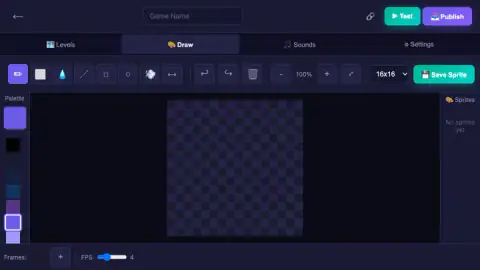
Open Draw and the grid gives way to a canvas with a chequerboard behind it, which is how it tells you the sprite is transparent. A dropdown above it sets the size, and ours came set to 16x16. That is a limit rather than a shortage: sixteen squares a side is the size of a classic sprite, small enough that a child fills one in a few minutes and large enough for a face.
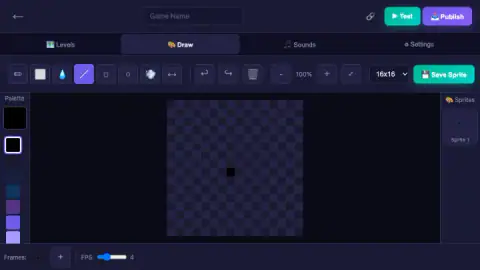
The palette runs down the left. The toolbar holds a pencil, an eraser, a paint drop for filling, a line, a square, a circle, a smudge, a flip arrow, undo, redo and a bin, then the zoom controls and a green Save Sprite button. Under the canvas, a strip labelled Frames with a plus button, and beside it a speed slider reading four. That strip is the quiet surprise: a sprite here is not one picture but a short animation, four frames a second until you move the slider.
What we managed was modest. Pick a colour, click a square of the canvas, and the square takes the colour. We put one black square in the middle and pressed Save Sprite, and the panel that had read "No sprites yet" turned into a thumbnail called Sprite 1 with our single dot inside. We never got a line out of the line tool, which may say more about our aim than the tool. The tutorial says drawn sprites are then assigned to the player, enemies, coins or gems; we did not get that far.
What happens when you press Test
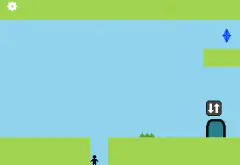
The editor disappears and the level takes the whole window. Ours was about as bare as a platformer gets: a strip of green-topped ground along the bottom, and on it a blue cube with two white eyes. In the corner a coin counter read zero and a heart read three, with Stop and Restart opposite. That level had a floor and nothing else, so we never saw a coin collected, never got the cube across, and will not guess at the keys.
Two tabs are still ahead of us: Sounds, where the tutorial says you choose music and effects, and Settings, where the speed, gravity and lives from that second card presumably live. Publishing is the other gap, and the one that matters, because it is the only route to coins and rating.
Making games without code is more than forty years old
The idea has a clear starting point. In 1982 Bill Budge released Pinball Construction Set for the Apple II: you dropped bumpers and flippers onto an empty table, changed settings such as gravity, and played the result. Wikipedia credits it with creating the construction-set genre, and notes that finished tables were saved to a disk and passed around — roughly what a share code does here.
In 1994 François Lionet and Yves Lamoureux made Klik & Play at Europress: objects dragged onto a stage, no programming. Its successor was called The Games Factory — nearly this game's name, and all they share. Nintendo's WarioWare D.I.Y., for the DS in 2009, split the job into the three parts Game Factory puts in its tabs: draw the pictures, make the music, assemble the game.
The difference is the rules. Klik & Play made you write them yourself, as a table of "if this, then that". Here the genre brings them with it, and that card about speed, gravity and lives is the whole of what you are given to bend. You decide where things go and what they look like; the platformer already knows what a coin is.
More games for people who like to make things
Game Factory suits anyone who has wondered how a platform level is put together, and suits badly anyone who wants something to play right away, since the only levels here are the ones you make.
Toybox: Pixel World Sandbox is a physics sandbox where you place blocks and characters and watch what happens. Wiggle Escape: Snake Puzzle has a mode for making your own puzzles. For the drawing side there is Pixel Art - Color by Numbers, a grid of squares filled one at a time. The rest are under arcade games.
Screenshots
Taken by opening the game ourselves and letting it run — not supplied by the publisher, and not the same picture every other site shows.
How to play Game Factory
- Read the opening cards, or skip them. There are nine, each with a Skip link and a Next button.
- Press Create Game, the wide purple bar at the top of the studio screen.
- Choose a genre. Platformer and Clicker were open for us. The other four had a padlock.
- Fill the grid. Click an icon in the Objects panel on the left, then click a square of the grid.
- Press Test. The green button at the top right plays your level. Stop brings you back.
What our sessions taught us:
- Dragging lays a row. We picked the coin, dragged along the grid and got four coins side by side in one move. For a floor, that beats clicking square by square.
- One square, one object. Our coins went onto the row our two ground blocks were on, and the blocks were gone afterwards: a new object seems to replace whatever was there.
- The icon is not the object. The coin sits in the panel as a money bag, the ground block as a plain black square. Place one of each before you plan anything, and lay the floor before the coins: ours ended up hanging in the air.
- Press Save Sprite before you leave the Draw tab. The panel on the right only took our drawing once we had pressed it.
Controls
| Click an icon in the Objects panel | Picks what you are about to place; the chosen icon gets a bright outline |
|---|---|
| Click a square of the grid | Places the chosen object there |
| Drag along the grid | Lays the chosen object in a row; that is how our four coins went down |
| Draw tab | Swaps the level grid for a drawing canvas, a colour palette and a toolbar |
| Click the canvas in the Draw tab | Fills one square of the sprite with the colour you picked |
| Save Sprite (green, far right of the drawing toolbar) | Puts the finished drawing in the Sprites panel; ours arrived there as Sprite 1 |
| Test button (green, top right) | Plays the level you have made |
| Stop and Restart (top right, during a test) | Stop ends the test; Restart starts the level again |
| Publish button (purple, top right) | Releases the game into your studio; we did not press it |
Features
- Six genres on the list; Platformer, Clicker, Shooter, Match-3, Runner and Tower Defense
- Platformer and Clicker open from the start; the other four sit behind a watch-ad button
- A level editor with a grid, a panel of objects, undo and redo, and room for more than one level
- Four editor tabs; Levels, Draw, Sounds and Settings
- A pixel editor with its own palette, twelve tools and a canvas set to 16 squares a side
- A frame strip under the canvas with a speed slider, so a sprite can be a short animation
- A Test button that turns the grid into a playable level with a coin counter and three lives
- A studio screen that counts your published games and their rating
- Made by Flagwin Studio
Game details
- Developer
- Flagwin Studio
- Release date
- March 2026
- Last updated
- August 10, 2026
- Added here
- January 2026
- Technology
- HTML5 (2D)
- Platforms
- Browser (desktop, mouse), Browser (mobile & tablet)
- Classification
- Simulation
- Saved progress
- Saving, when available, is managed by this game. Mava cannot confirm your level.
FAQ
What is Game Factory?
It is a game-making kit that runs in the browser, not an action game. You choose a genre, place objects such as ground blocks and coins on a grid, draw your own sprites if you want to, and press Test to play what you made. A studio screen keeps your games and counts how many you have published.
Which genres can you make in Game Factory?
The genre list has six: Platformer, Clicker, Shooter, Match-3, Runner and Tower Defense. When we played, Platformer and Clicker were open and the other four were locked. We only made a platformer.
How do you unlock the locked genres in Game Factory?
Each locked genre has a gold Watch Ad button with a counter that read 0/2, which we take to mean two ads per genre. We did not watch any. The game's tutorial also mentions unlocking more in the shop, which we did not open.
How do you place objects in the Game Factory editor?
Click an icon in the Objects panel on the left, then click a square of the grid. Dragging along the grid lays the same object in a row. As far as we could tell each square holds one object, so a coin placed on a ground block takes its place.
Can you draw your own characters in Game Factory?
Yes. The Draw tab opens a pixel editor with a colour palette, a toolbar and a canvas set to 16 squares a side. Clicking a square fills it with the colour you picked, and the green Save Sprite button files the drawing in a Sprites panel on the right. A frame strip and a speed slider under the canvas mean a sprite can also be a short animation.
How do you test your game in Game Factory?
Press the green Test button at the top right of the editor. The grid gives way to the level itself, with a coin counter and three lives in the corner. Stop takes you back and Restart begins the level again.
Do you need to know how to code to use Game Factory?
No. We saw no code and no rule editor. The four tabs are Levels, Draw, Sounds and Settings, and the tutorial describes the settings you can change as speed, gravity, lives and background colour.
What do you get for publishing a game in Game Factory?
The tutorial card says it plainly: "Publish your game to earn coins and rating! You can also share a code with friends". Those two words match the two counters on the studio screen, Published and Rating, which both start at zero. We never pressed Publish, so we cannot tell you how many coins a game is worth.
Who made Game Factory?
It is credited to Flagwin Studio. It was published on 15 March 2026. It is not related to The Games Factory, the 1996 game-making program for Windows with almost the same name.